
How to upload media to your Media Library in Poppi Social
A practical walk-through of adding media to your Media Library for the first time in Poppi Social.
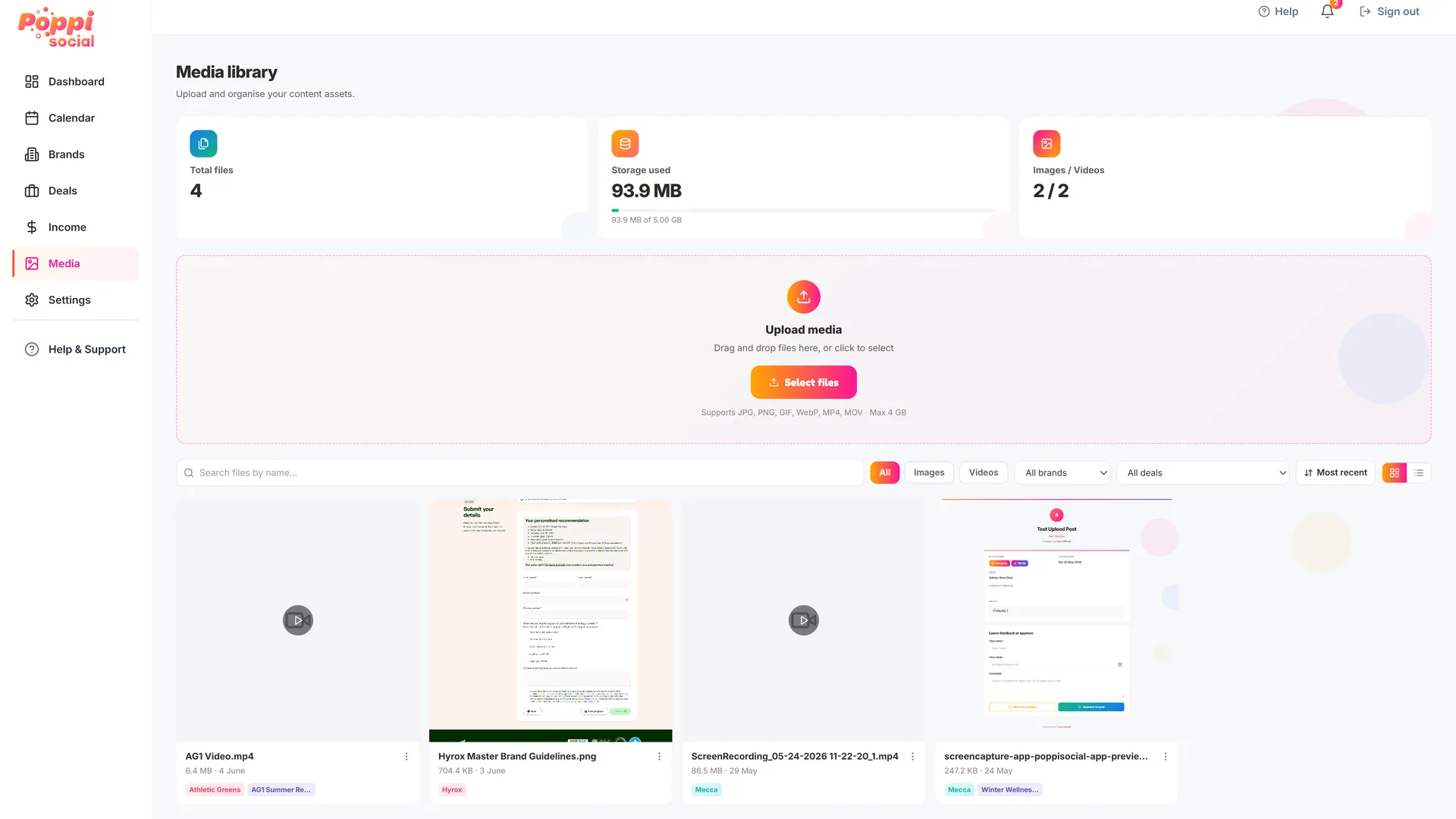
Uploading media is simple with Poppi. You can upload files inside a deal, however if you want to upload files directly to the media library, you can do this via the "Media" tab in the left-hand menu. This is your media library where you can upload and store all your media files in one place. You can then link these files to brands, deals and posts when you're setting them up.
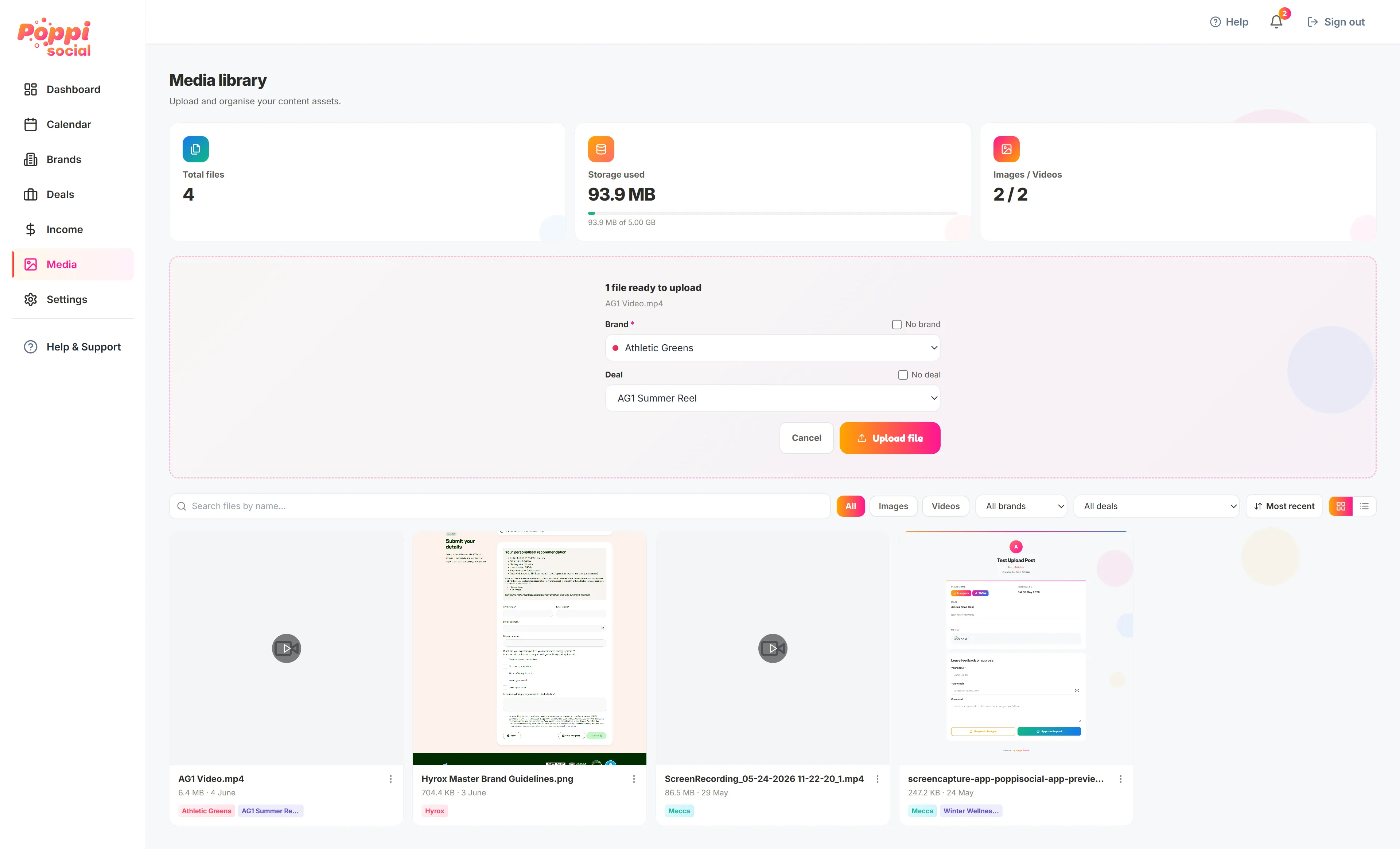
Simply hit the "Select Files" button or drag and drop files into the designated area. You will then be prompted to link the files to a brand and deal. If you don't want it linked, just click "No Brand" or "No Deal" to proceed. You can update this easily at a later date.
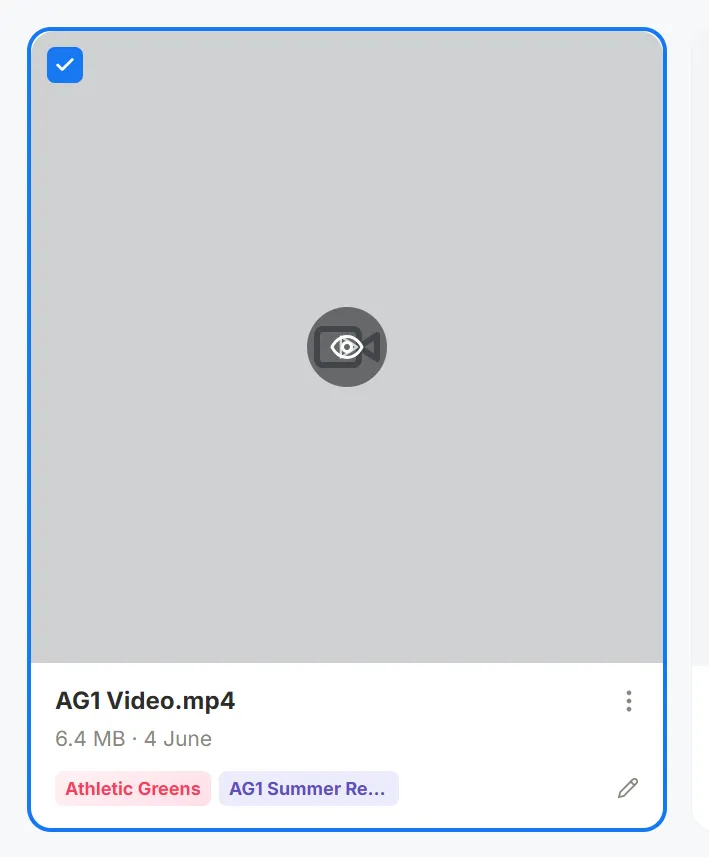
Once uploaded, you can download, rename or delete media files at any time by hitting the 3 dots. You can also edit the brand and deal tags by hitting the pencil 'edit' icon. Clicking on the media will let you view a larger preview and play videos.