How to Invoice a Client in Poppi Social
A practical walk-through of creating a quote or invoice for the first time in Poppi Social.
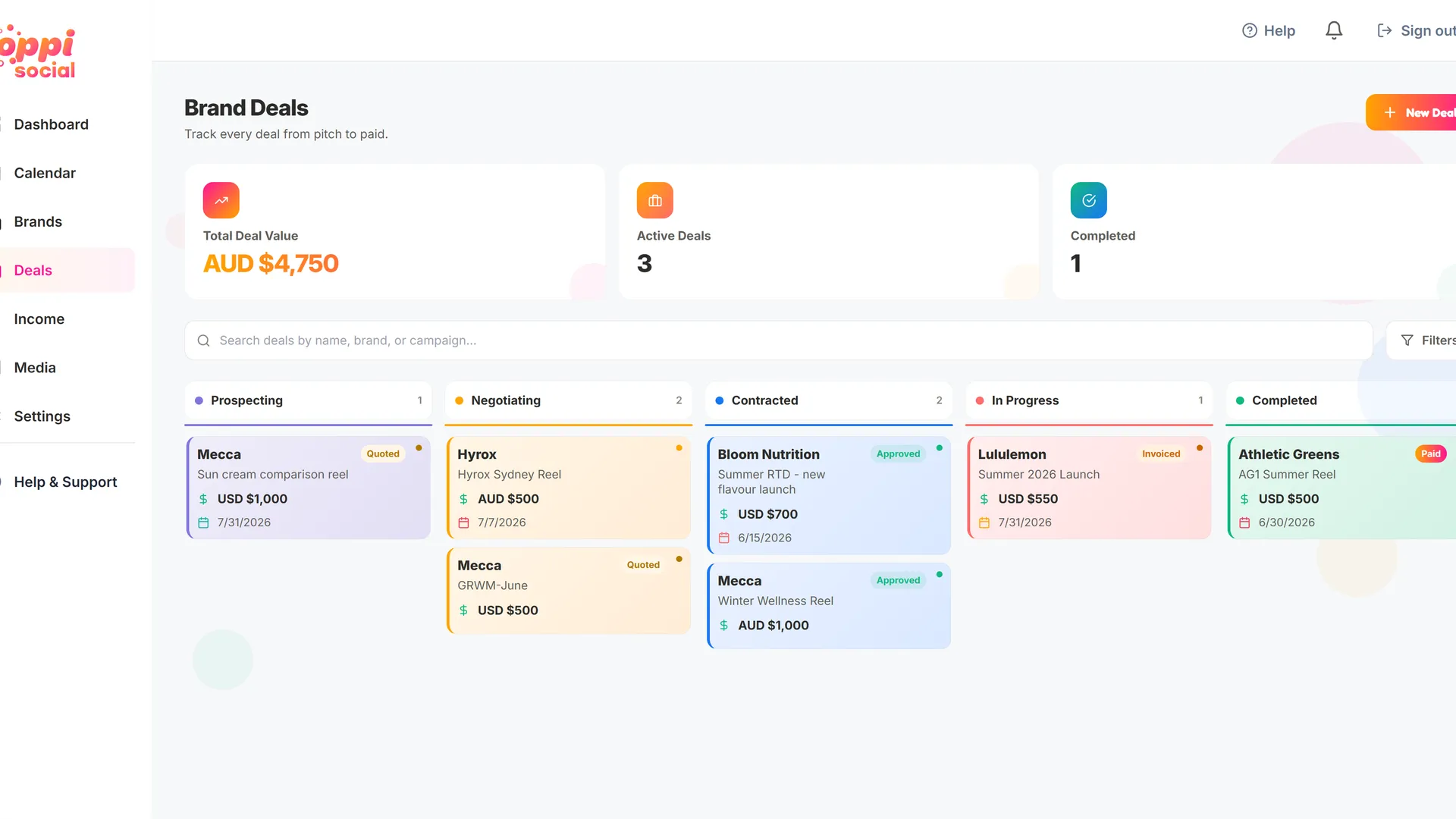
Once you have created a brand deal, you can create a quote or invoice for your client. To do this, go to the "Deals" dashboard and click on the deal you want to create a quote or invoice for. This will open the deal details page where you can see all the details of the deal and make any edits if needed.
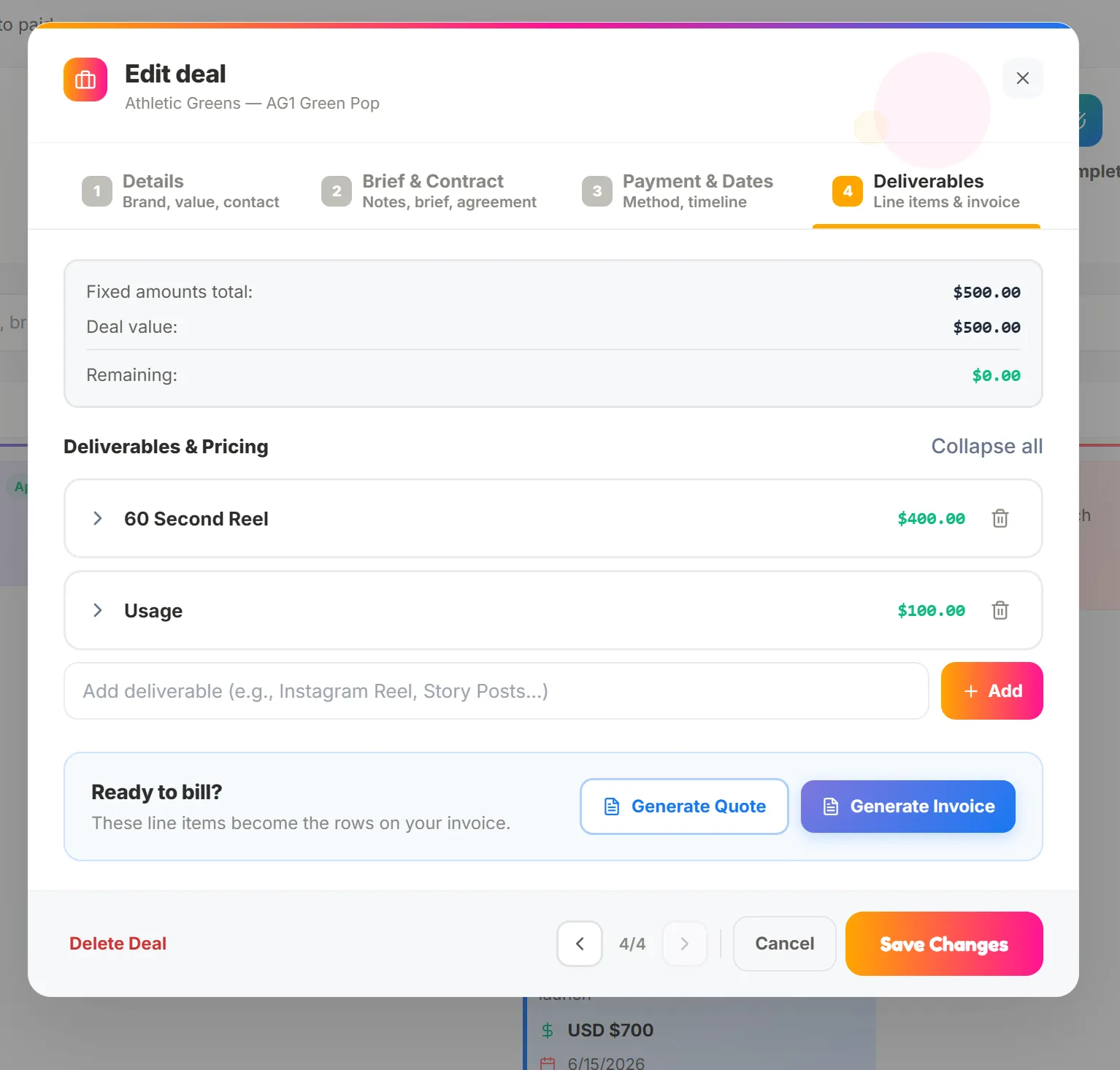
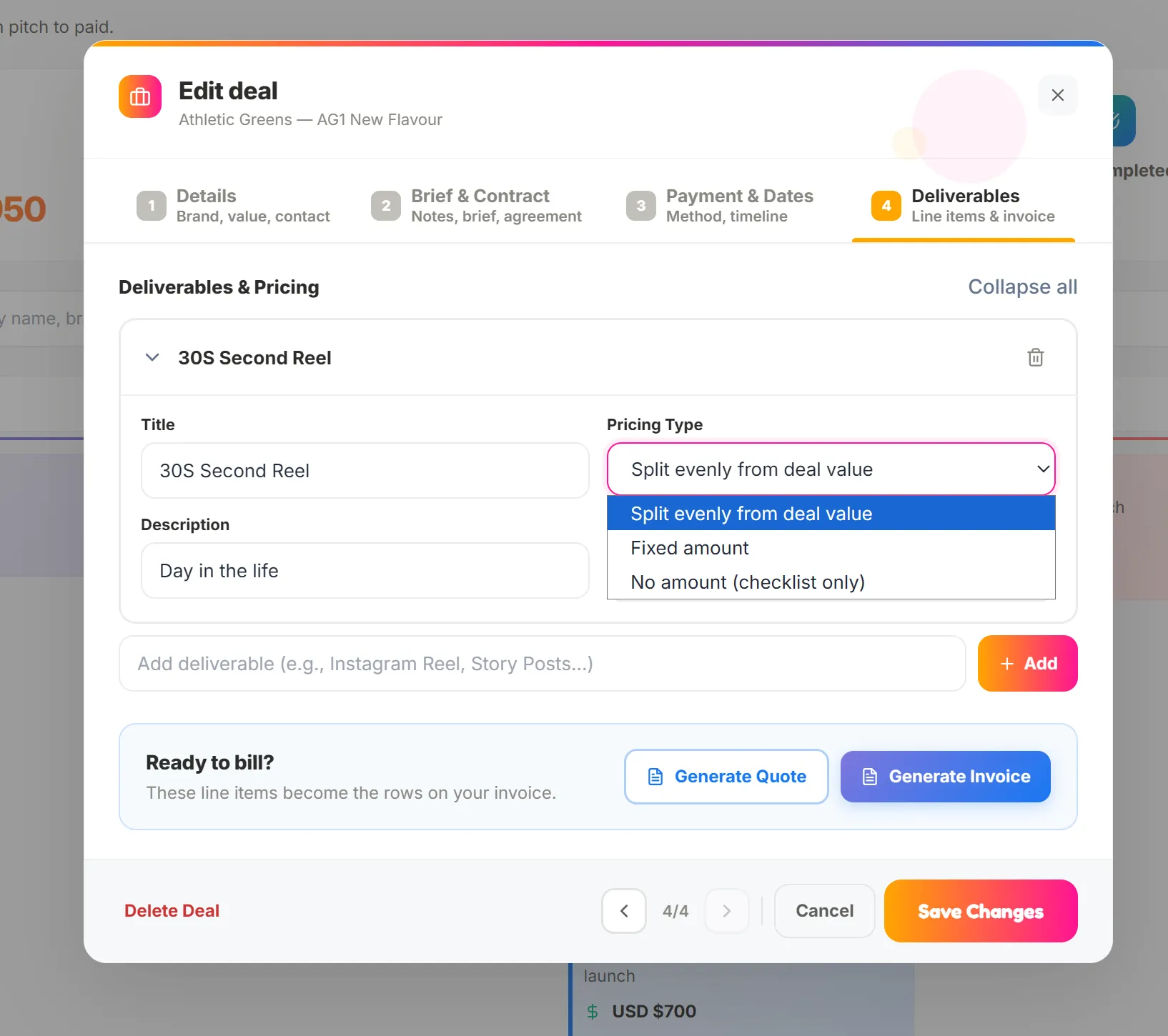
By default, the quote or invoice will be for the total amount of the deal. You can add line items or deliverables to the quote or invoice to break down the costs. Depending on the complexity of the deal, you may want to create a detailed quote with multiple line items. To do this, add a deliverable at the bottom of the deal page.
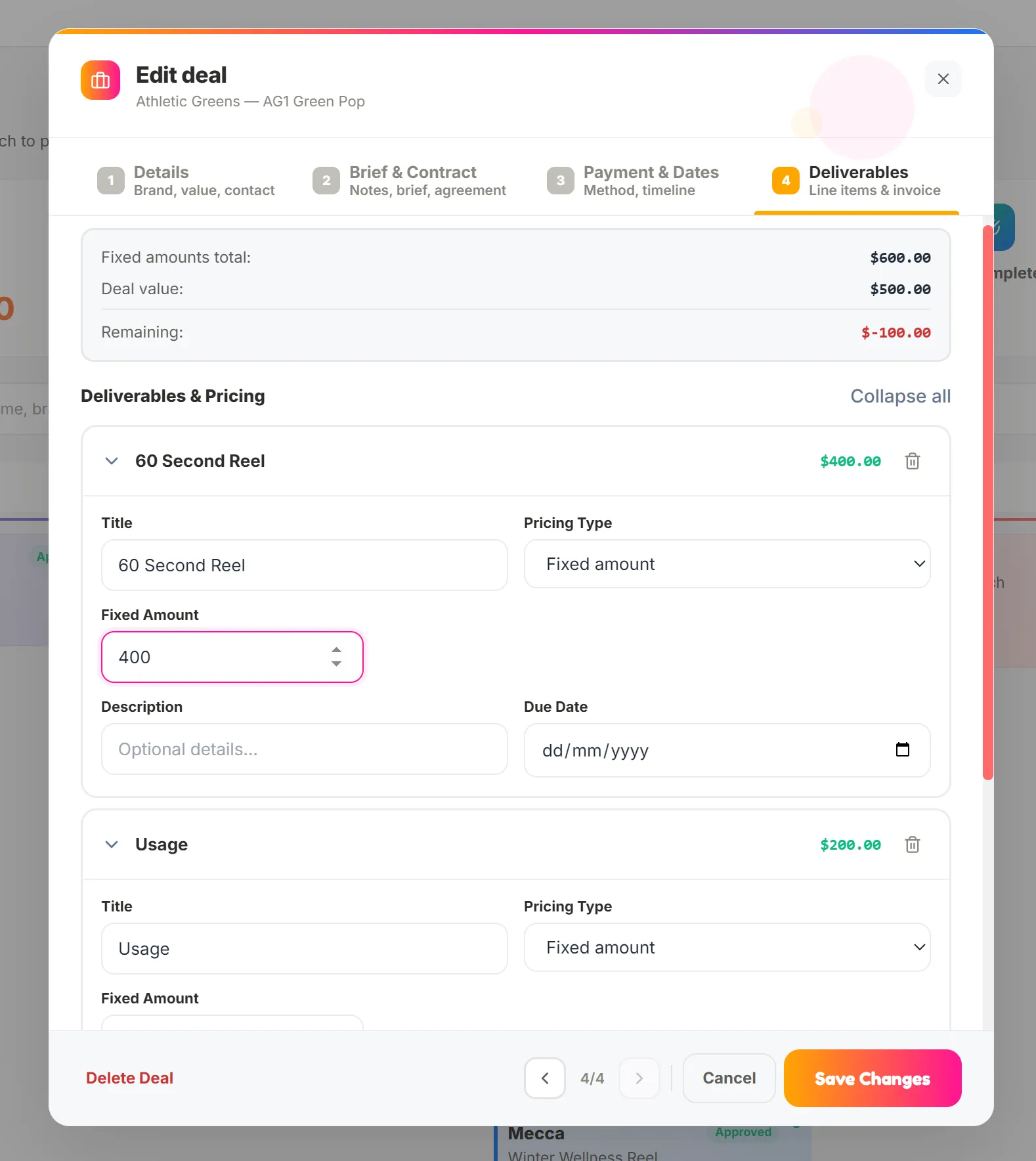
If you assign a fixed amount over the total deal value, the remaining amount will turn red to show how far over you are. If you disregard this, the invoice will adjust the line item amount to match the deal value.
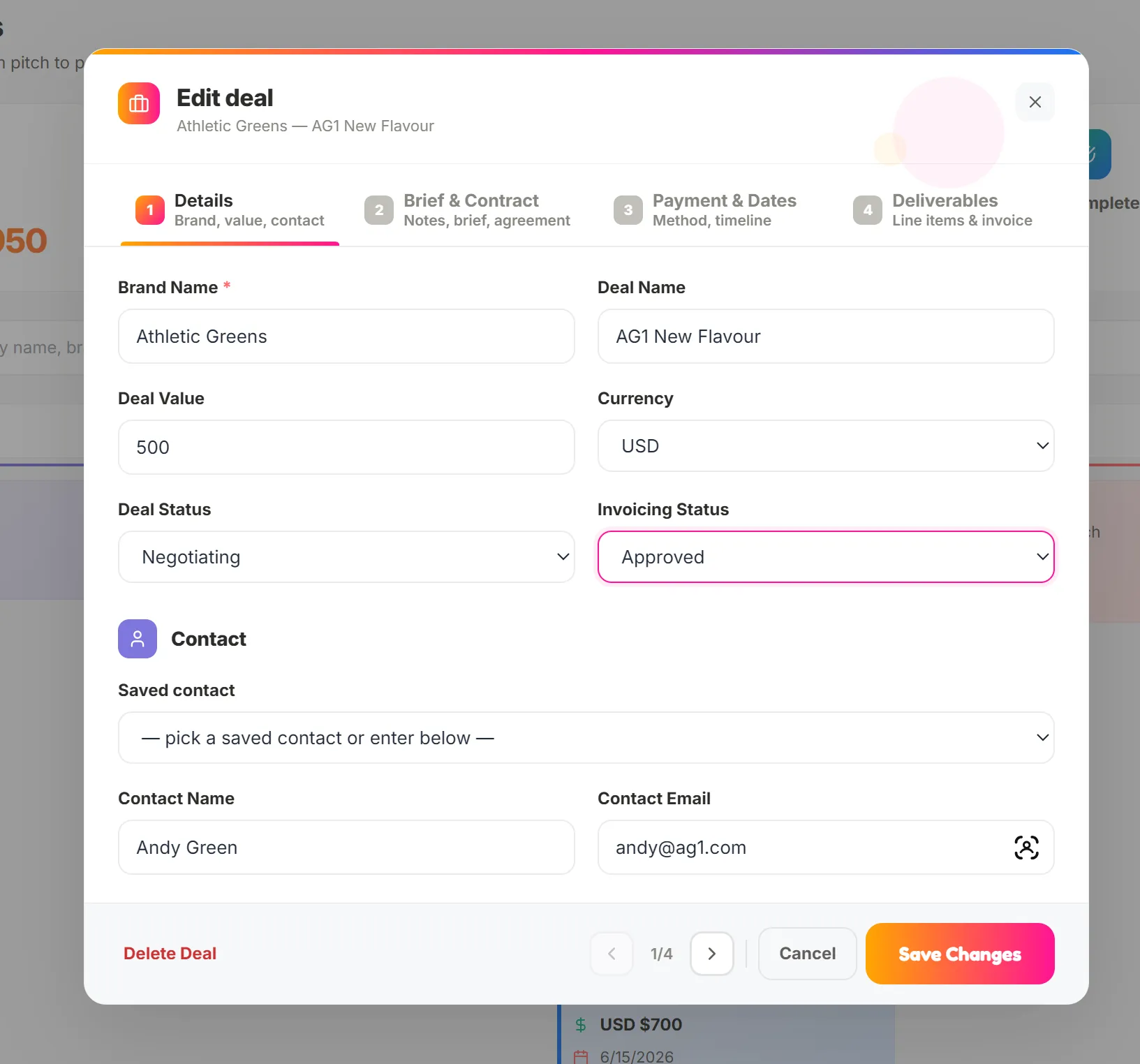
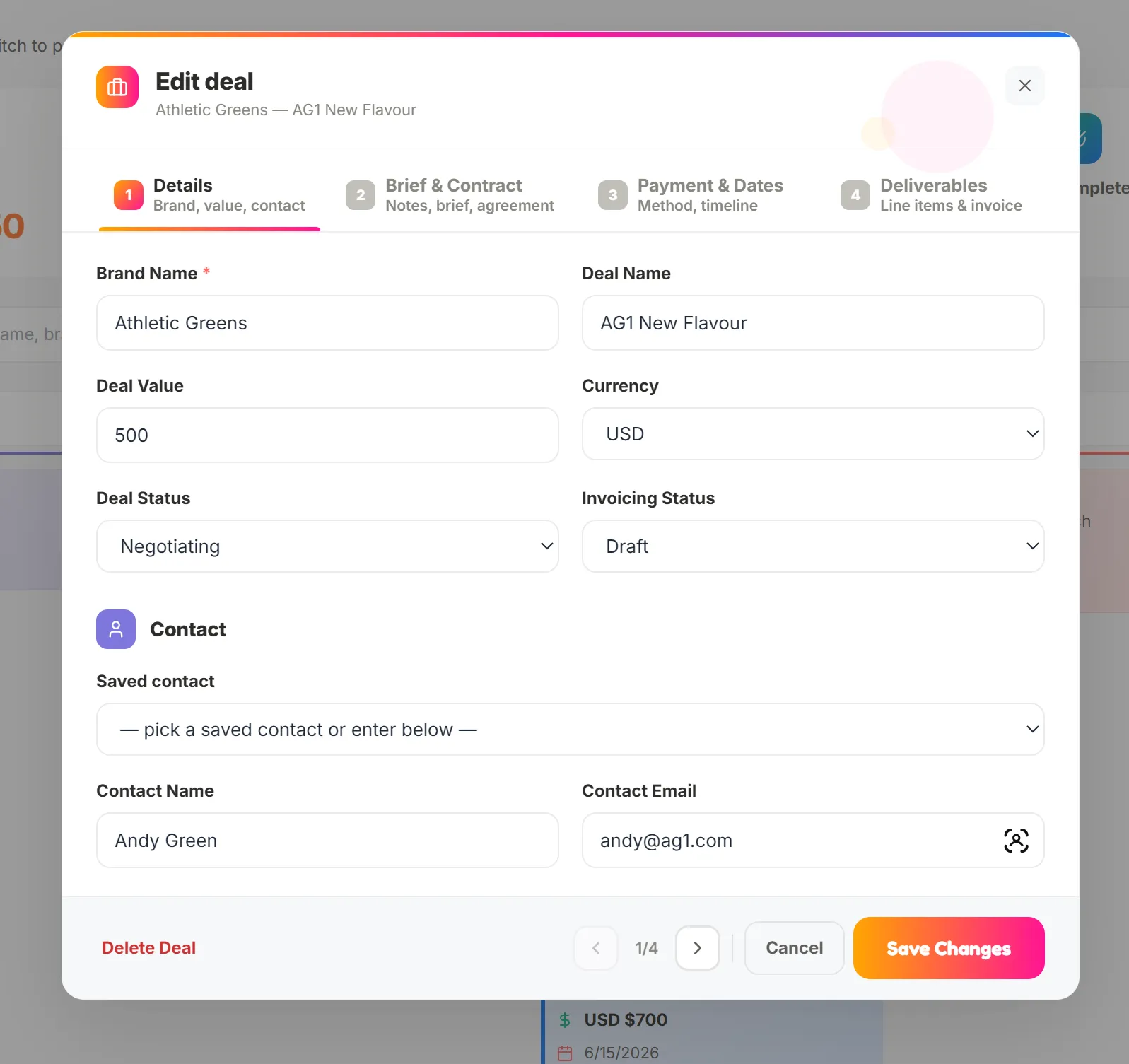
When creating a quote or invoice, the "Invoicing status" dropdown drives the quote or invoice availability. "Quote" status will allow you to generate and download a Quote. All other statuses will allow you to generate and download an invoice.
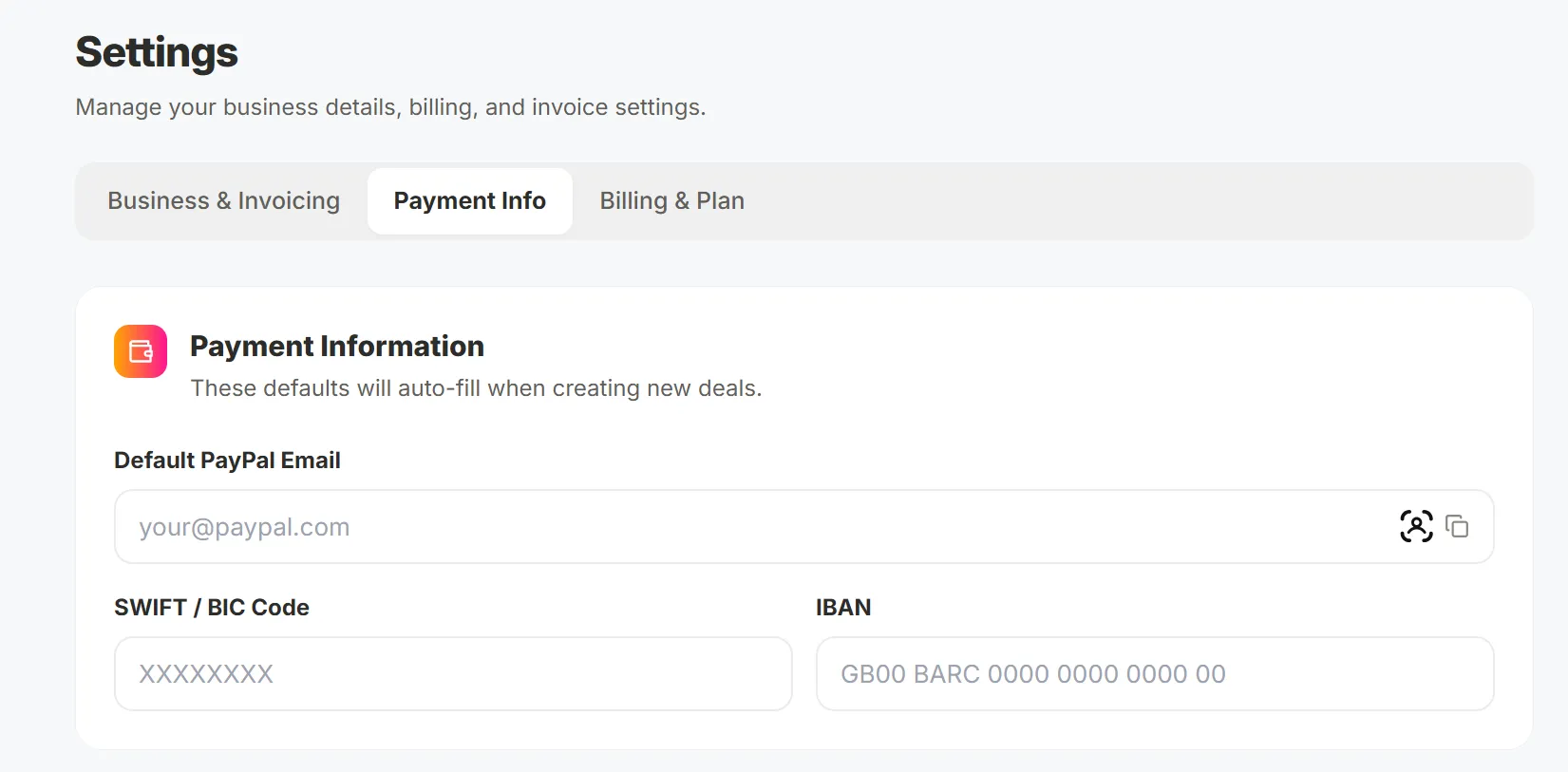
If the details for your payment method (bank details, paypal etc) are not already saved, you can add them in "Settings". Alternatively, you can add custom payment methods for individual deals
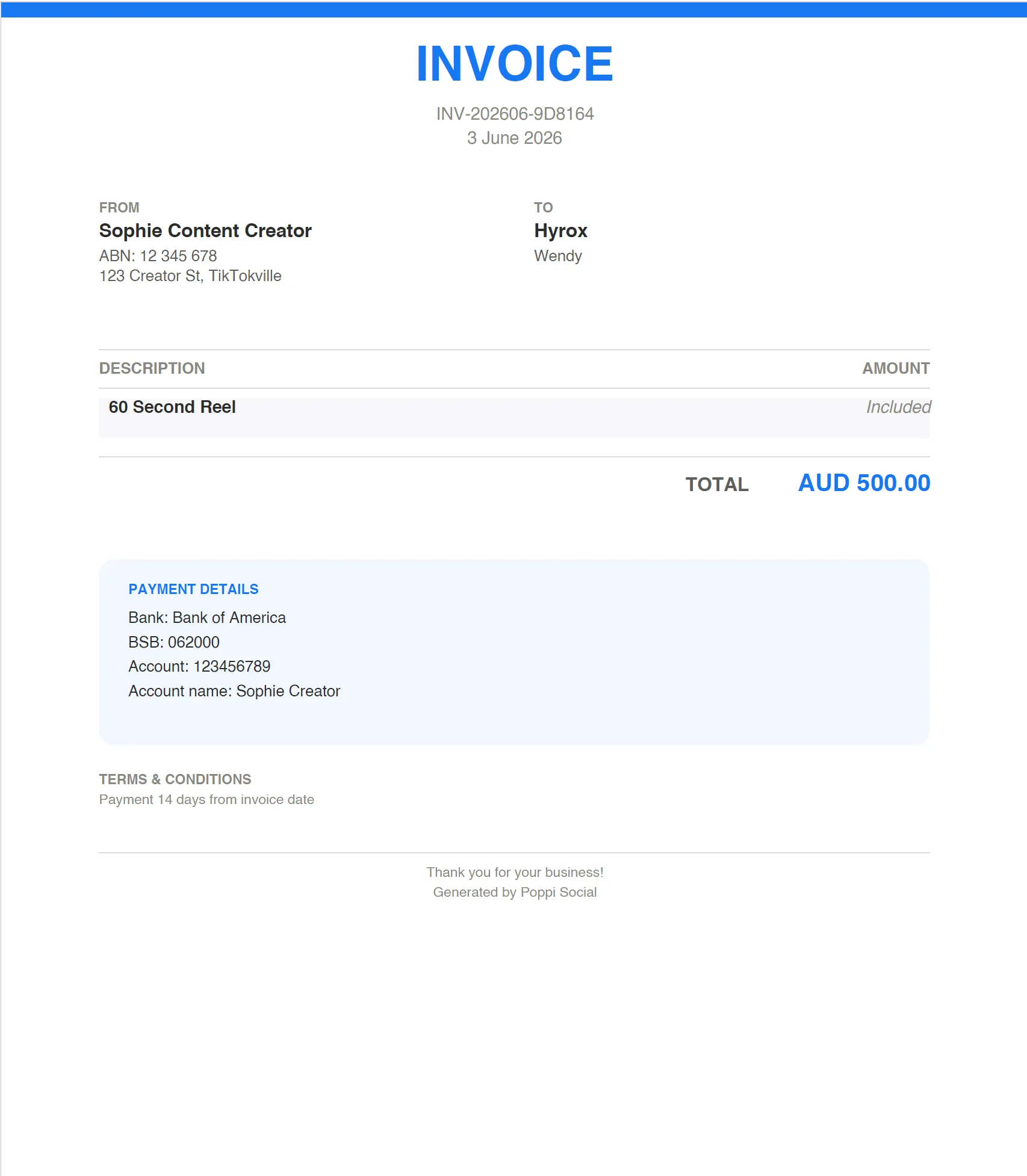
When you click "Generate Quote" or "Generate Invoice", the system will create the respective document based on the details you've entered and show you a preview. You can then download that as a PDF and send to the client. If there are any errors, simply edit your deal and hit the "Generate" button again.