
Getting started with Poppi Social: video walkthrough
A step-by-step tour of Poppi, from your first brand to getting paid. Watch the video, or jump straight to the chapter you need.
Step-by-step walkthrough
Welcome and dashboard tour 0:00
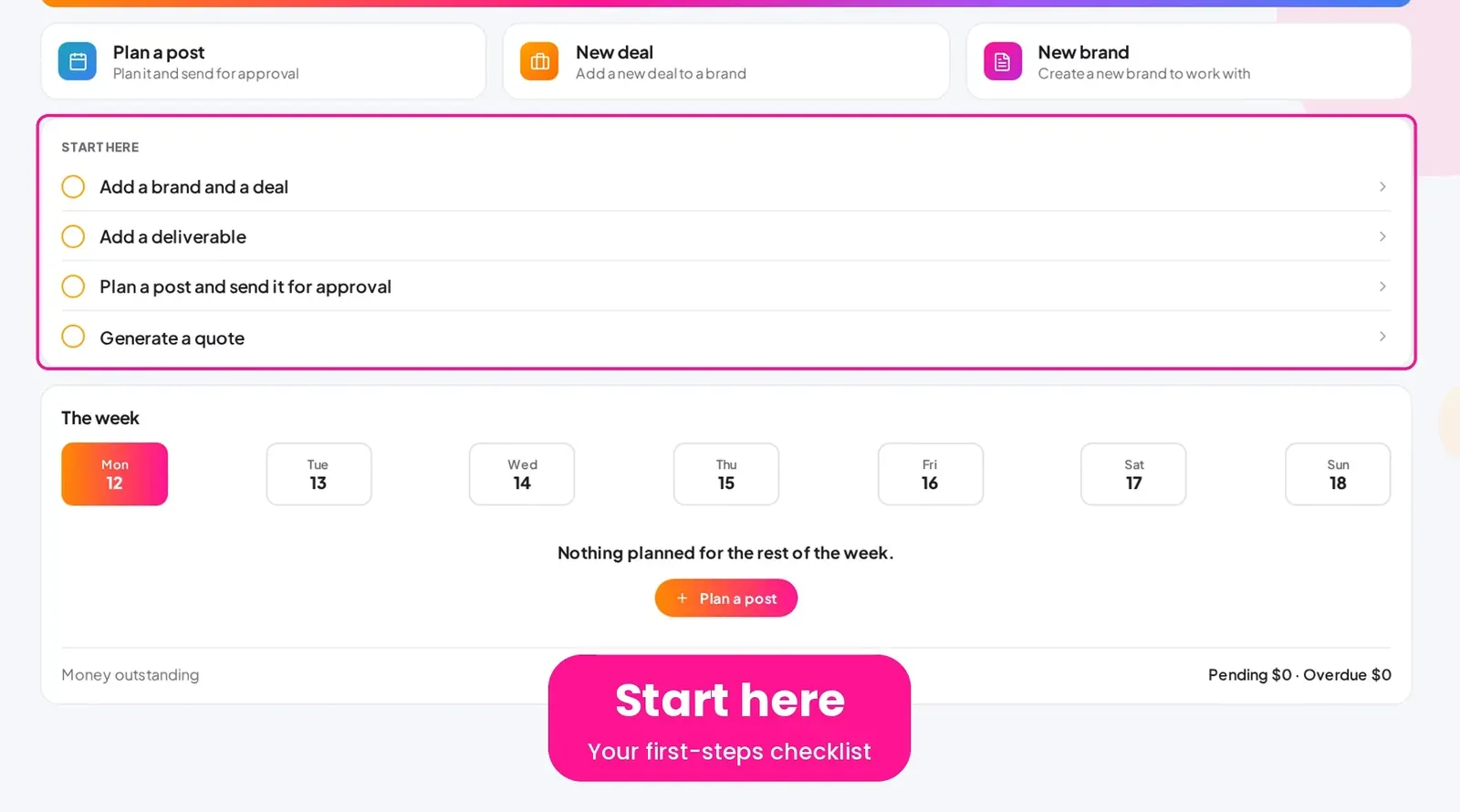
Your dashboard, the Start here checklist, one-click shortcuts and the menu that takes you everywhere.
Transcript
Hi, welcome to Poppi! In the next few minutes, I'll show you how to run the business side of your brand deals, from your first brand to getting paid. When you log in, you land on your dashboard.
It shows what's on this week, and what needs you. If you're new, follow the Start here checklist. It walks you through your first brand, deal, post and quote. Shortcuts let you plan a post, start a deal or add a brand in one click.
Below, you'll see your week, and any money still owed to you. The menu on the left takes you everywhere: Inbox, Brands, Deals, Posts, Calendar, Income, Media and Settings. Let's go through them in order.
Brands 0:46
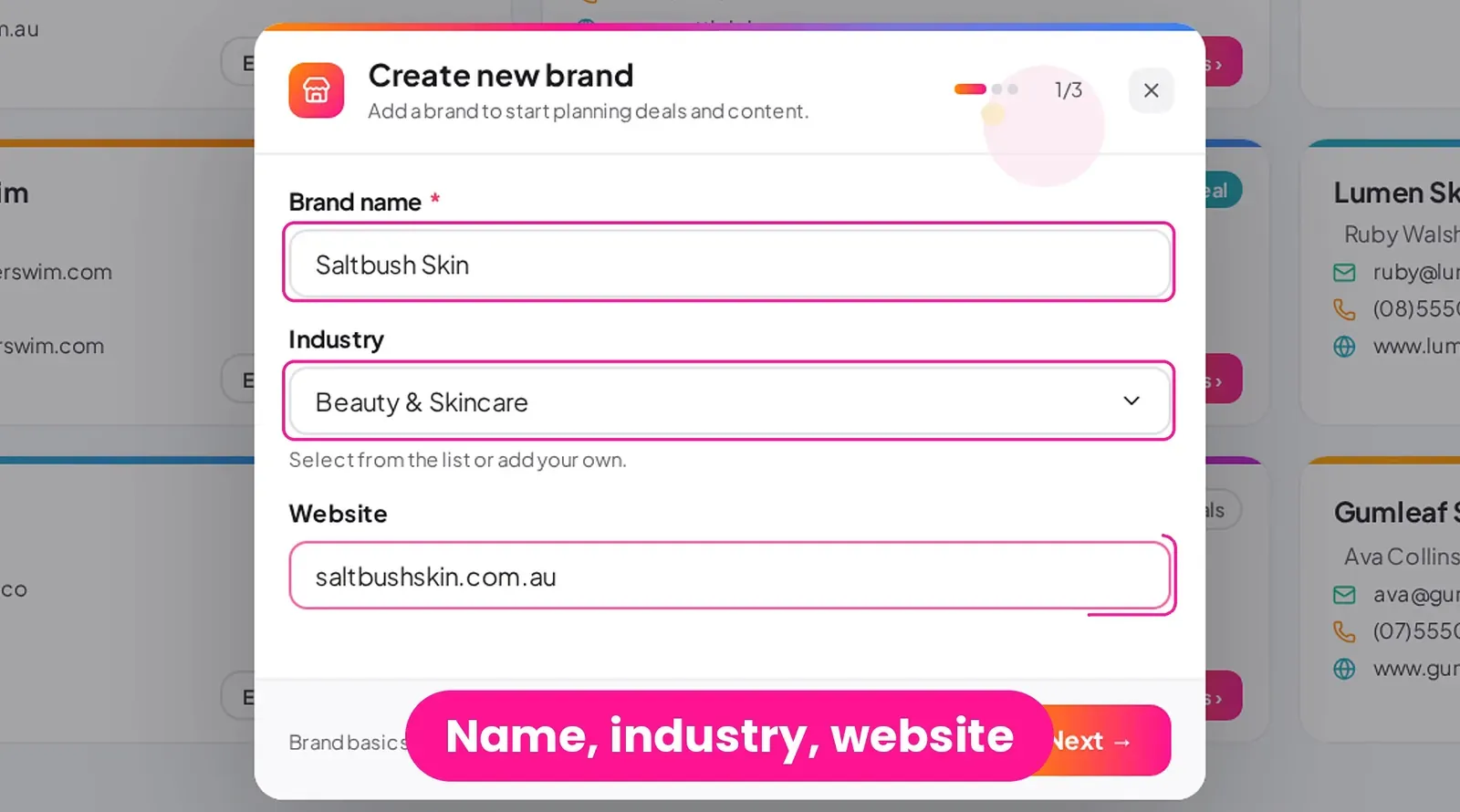
Add a brand with its contact and notes, then edit it or keep brand links and files in one place.
Transcript
First up, Brands. A brand is any company you work with. Go to Brands, and click New brand. Type the brand name, choose an industry, and add their website. Next, add your contact. Here, that's Ella Hart at Saltbush Skin.
Add any notes, pick a brand colour if you like, then click Create brand. Saltbush Skin now has its own card, with your contact's details at a glance.
Click Edit any time to update the details, or keep links and files, like brand guidelines, in one place.
The brand, contact and figures in this chapter (Saltbush Skin, Ella Hart, Mia Rivers) are fictional examples.
Deals and the pipeline 1:23
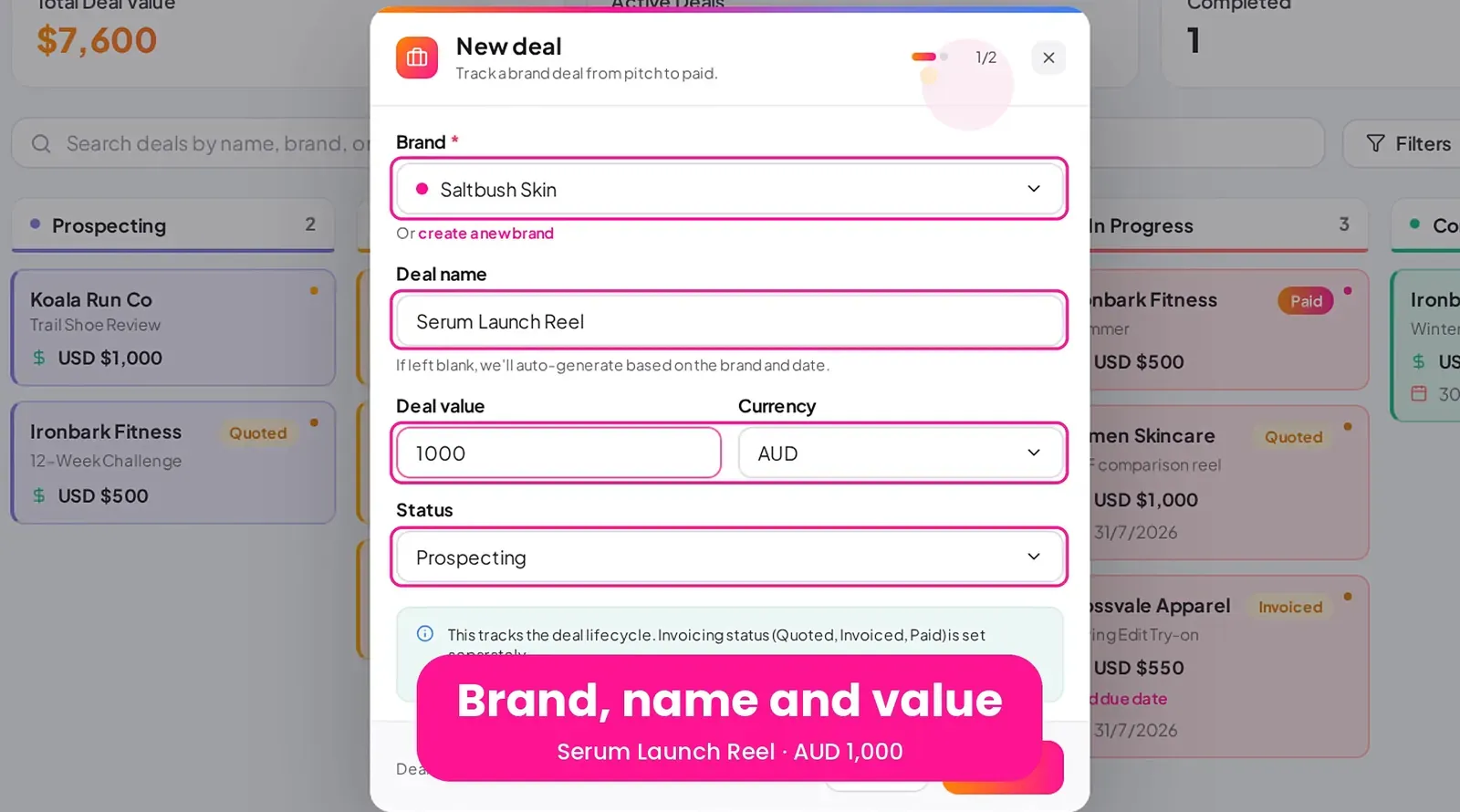
Create a deal, add deliverables and choose a pricing type, then track the deal along your pipeline.
Transcript
Now, Deals. This is your pipeline, where every deal moves from pitch to paid. Click New deal. Choose the brand, name the deal, and set the value and currency. Status shows where the deal is at, starting with Prospecting.
On the next step, add the campaign dates, your contact and any notes. Then click Create deal. Open the deal to add your deliverables, like one Instagram Reel. These become the line items on your quote and invoice.
Each deliverable has a pricing type. Split evenly shares the deal value, Fixed amount sets its own price, and No amount is for checklist items.
Further down, keep the brief and contract with the deal, and tick Contract signed when it's done. Then choose how you'd like to be paid. Your deal sits on the pipeline.
As it moves along, update its status, and the card moves with it.
Posts and the calendar 2:24
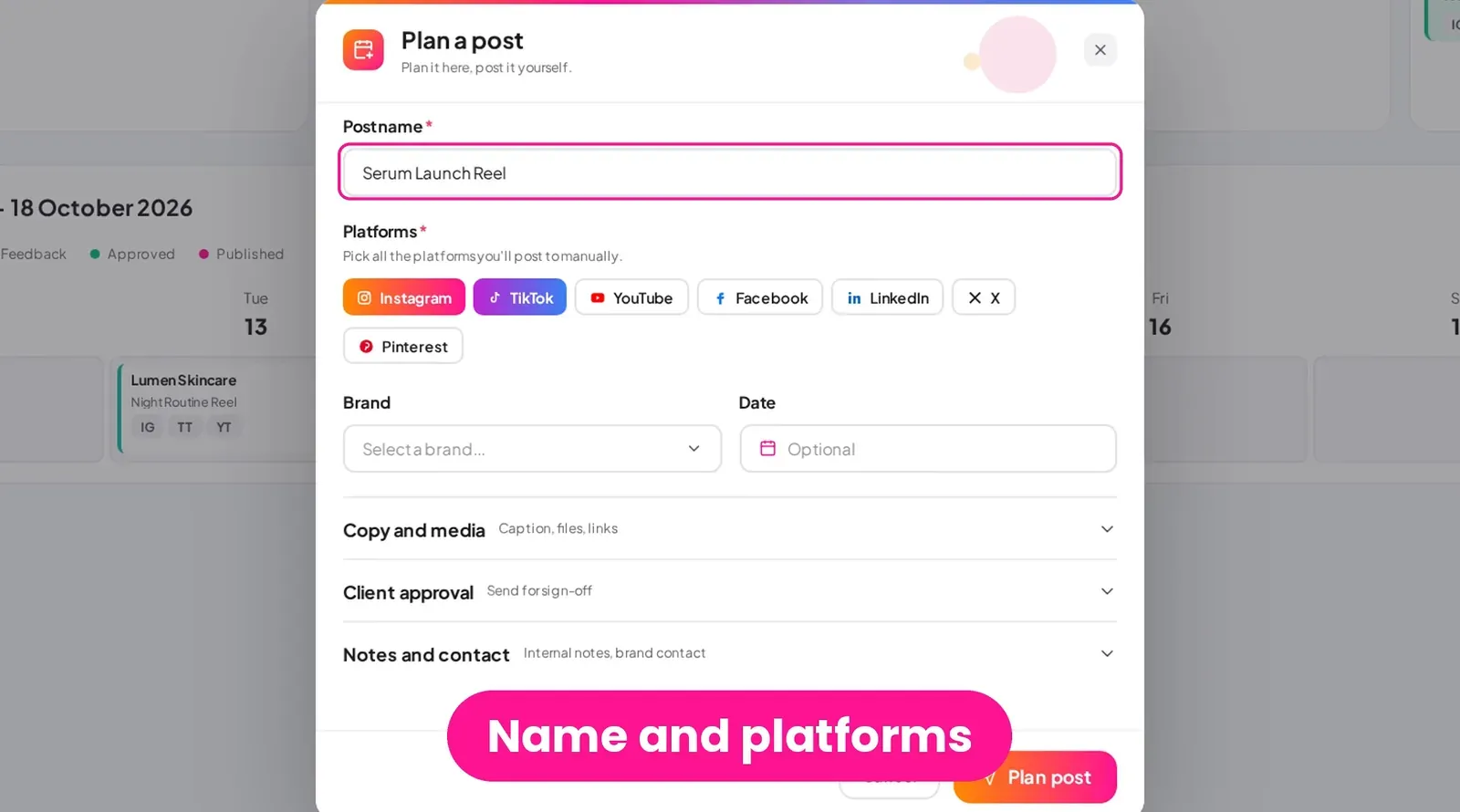
Plan a post with its platforms, brand, deal, caption and media, then see it on the Posts page and your content calendar.
Transcript
Next, let's plan the content. Click Plan a post. It's always at the top of the menu. Name the post and pick your platforms, like Instagram and TikTok. Link it to the brand and deal, then choose the date and time.
Write your caption and upload your media. The Send for approval switch is here too. We'll get to that in a moment. Click Plan post, and it's saved. The Posts page groups everything by status, from drafts to published.
And your post shows up on the content calendar, on the day it's due.
Client approvals 3:01
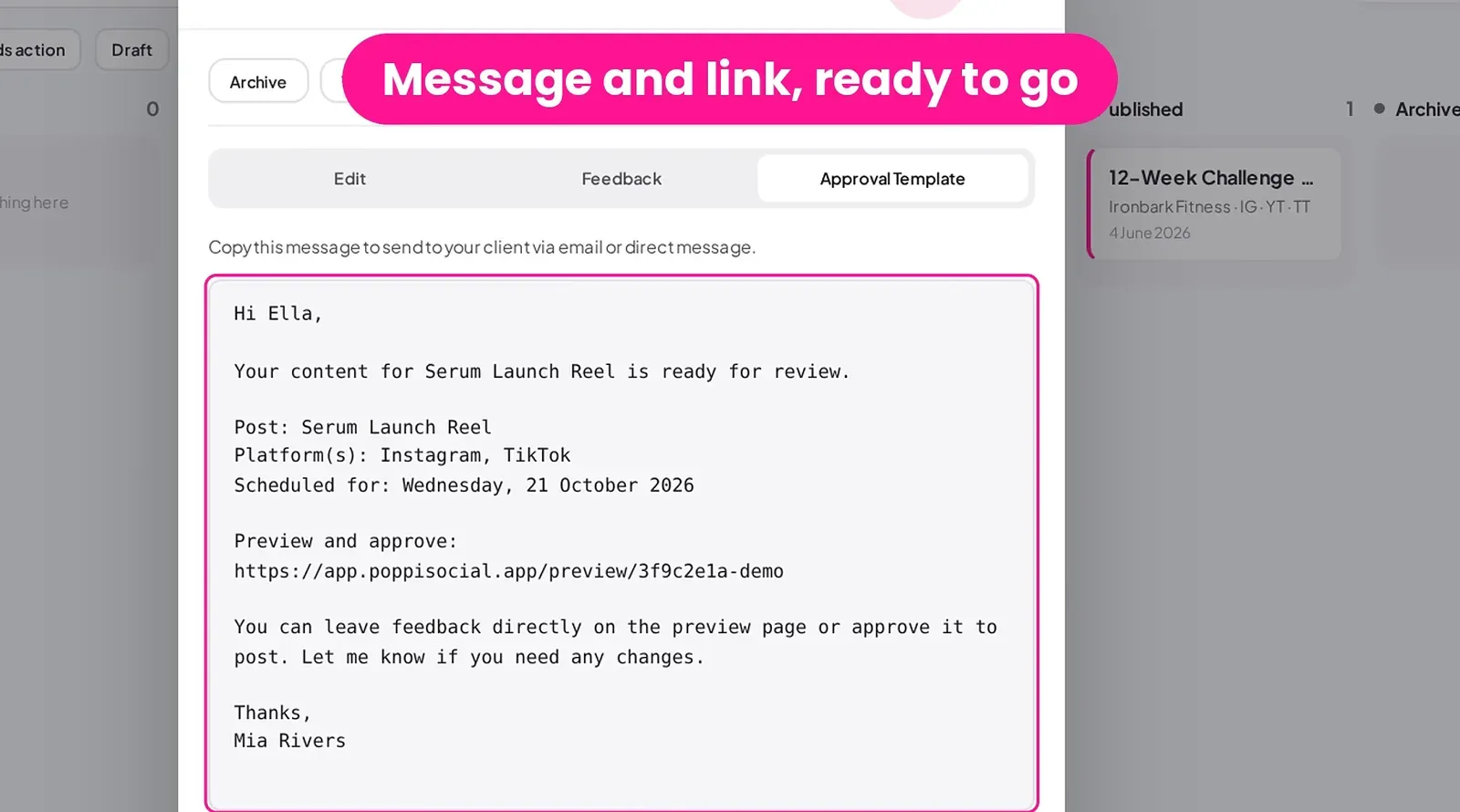
Send a private preview link for sign-off, then see your client's approval or feedback in your inbox.
Transcript
Need your client's sign-off? Open the post and click Send for approval. Poppi writes the approval message for you, with a private preview link. Click Copy approval request, then paste it into an email or DM to your client.
Your client opens the link. There's no login. They see the platforms, the date, the caption and the media. They can leave a comment and request changes, or click Approve to post, and confirm. Done! Ella has approved the post.
Either way, you'll get a notification in your Poppi inbox, and by email, so you never miss a reply. Open it to read the feedback, and mark it published once it's live. On the Posts board, it's moved to Approved, ready to publish.
Ella Hart, Saltbush Skin and the post shown are fictional examples.
Quotes and invoices 3:56
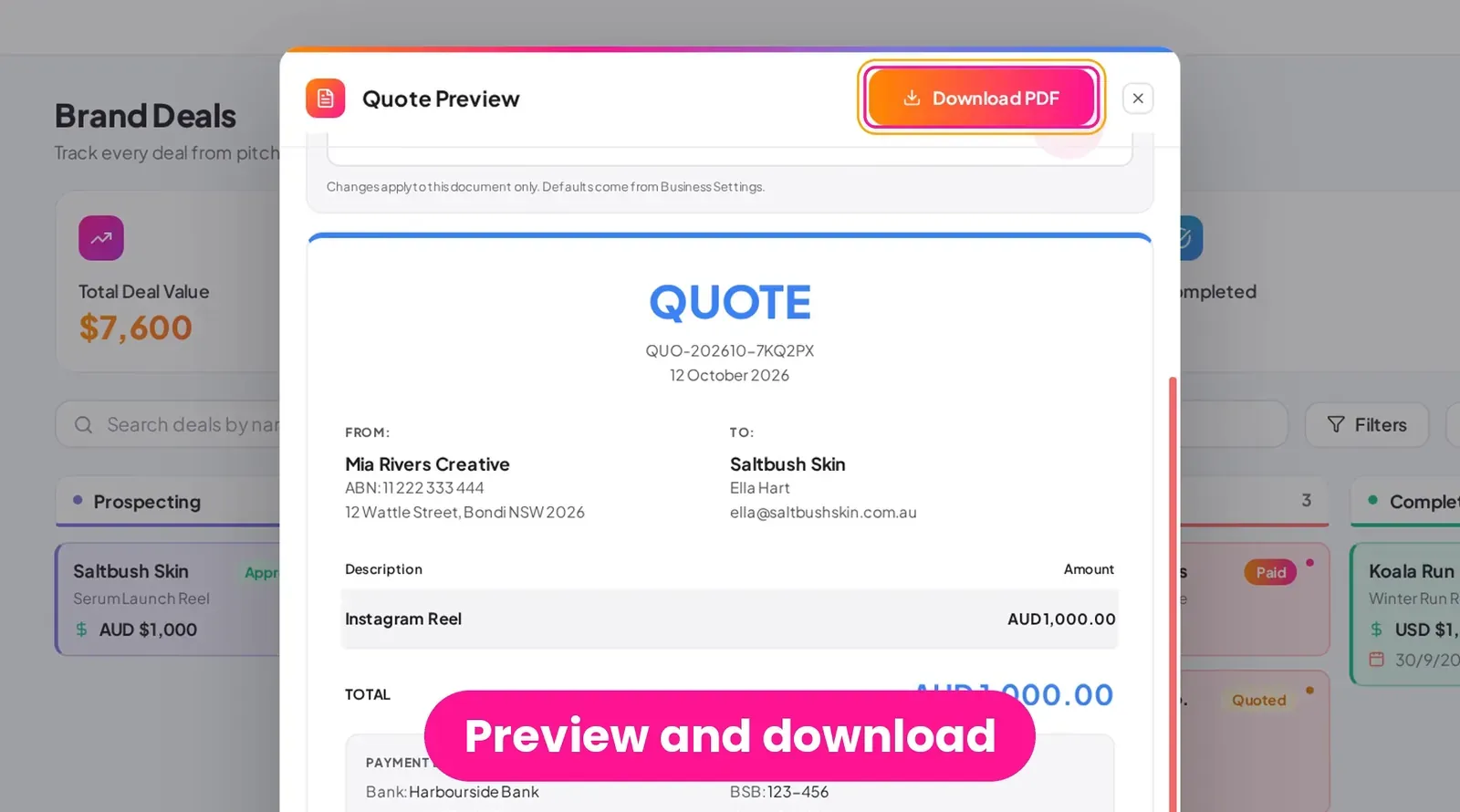
Generate a quote and an invoice from your deal, download the PDFs, and track the status through to Paid.
Transcript
Now for the money. Open the deal and click Generate quote. Poppi builds it from your deliverables. Check the preview, add a note for the brand if you like, then download the PDF and send it.
Invoicing status tracks each step: draft, quote, approved, invoiced and paid. When the brand says yes, set it to Approved. When the work's done, click Generate invoice. Set the due date, check it over, and download the PDF.
Once it's sent, set the status to Invoiced. Your bank details and payment terms come straight from Settings. And when the payment lands, set it to Paid. That deal is done!
Income tracker 4:43
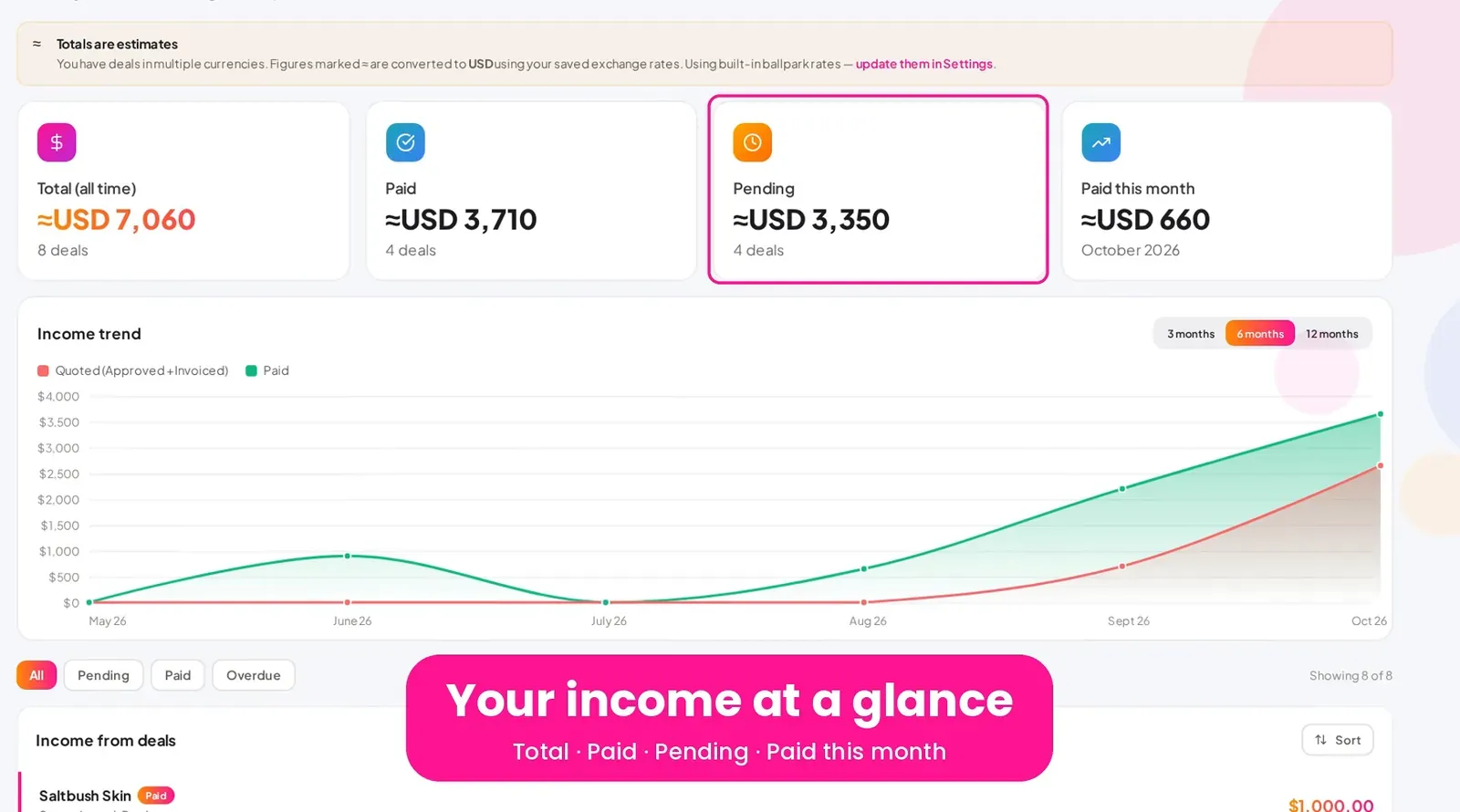
See what you've earned, what's paid and what's pending, with a trend chart and a CSV export.
Transcript
Income brings it all together: your total, what's paid, what's pending, and what you've been paid this month. The trend chart shows what you've quoted against what you've been paid.
Deals in other currencies are converted to your default currency. You can filter the list, or export a CSV at tax time.
Media library 5:03
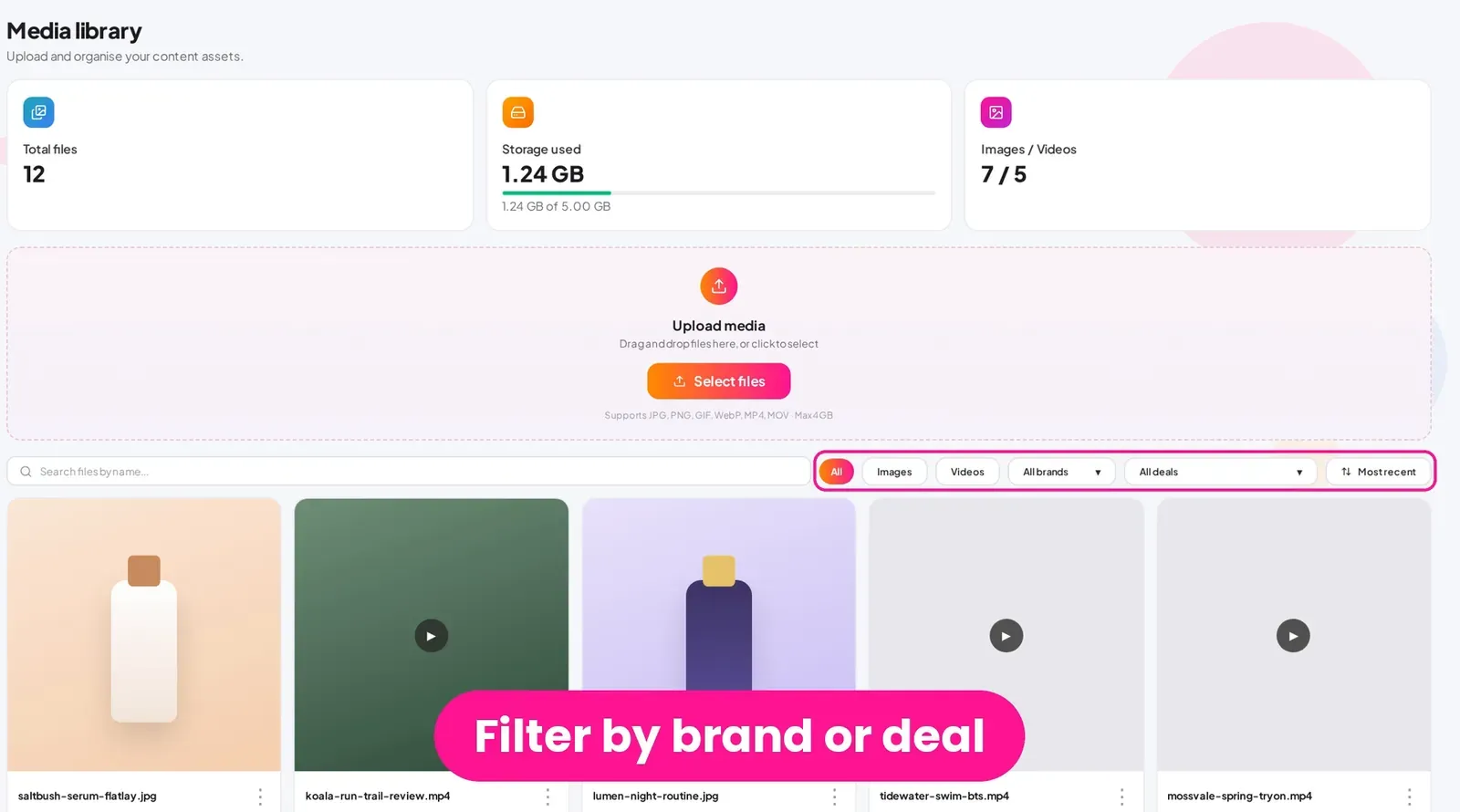
Upload files to your Media library, filter them, and tag them to a brand and deal.
Transcript
Media is your content library. Drag files in, or click Select files to upload. Filter by type, brand or deal to find things fast.
Each file has a menu to download, rename or delete it, and you can tag it with a brand and deal, so it's easy to find later.
Settings 5:26
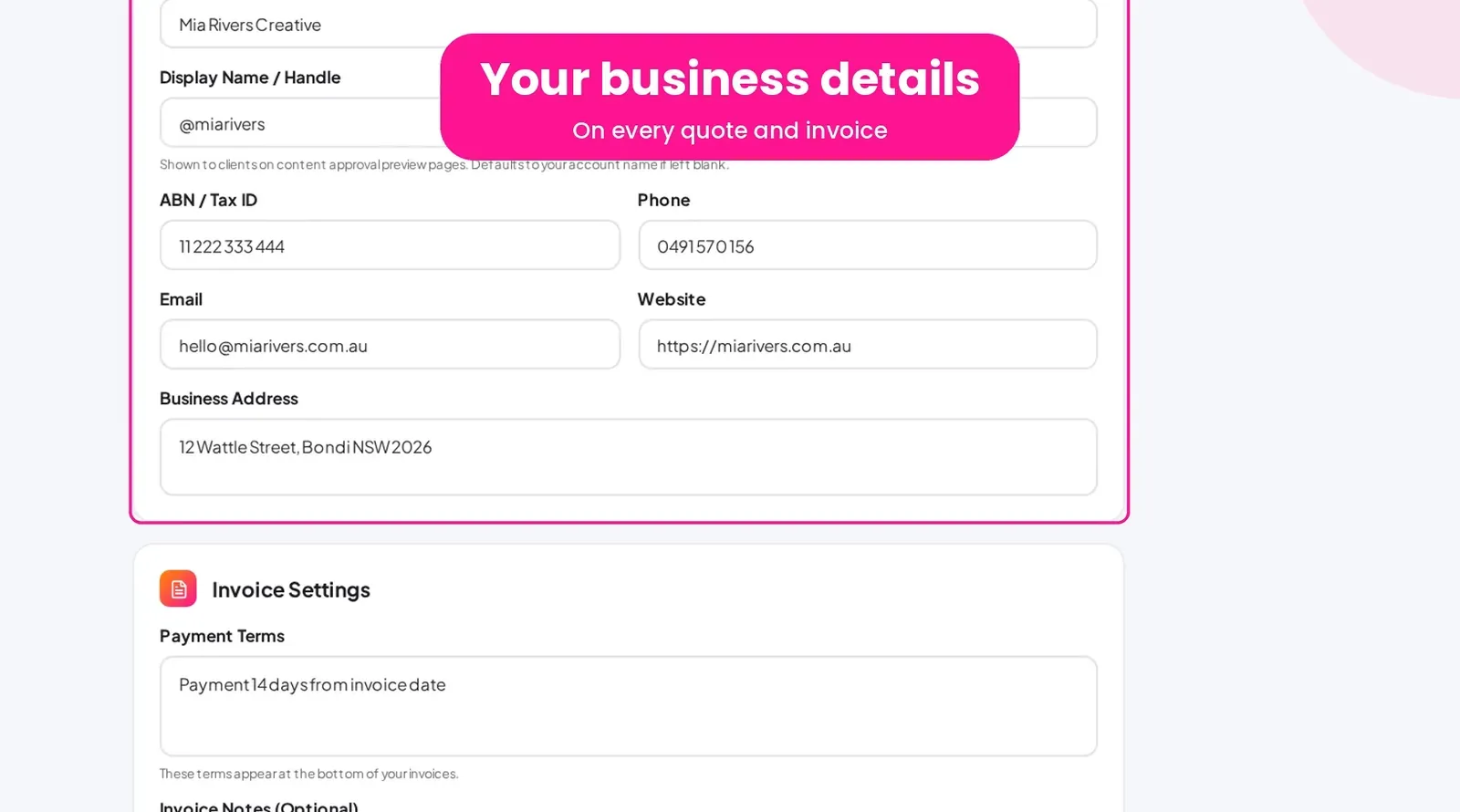
Your business details, payment info, default currency, plan and account.
Transcript
In Settings, start with Business and invoicing. Your business details and payment terms appear on every quote and invoice. Payment info holds your bank details, and your default currency, which Income uses for its totals.
Billing and plan shows your subscription, and Account is where you change your password.
Poppi on mobile 5:50
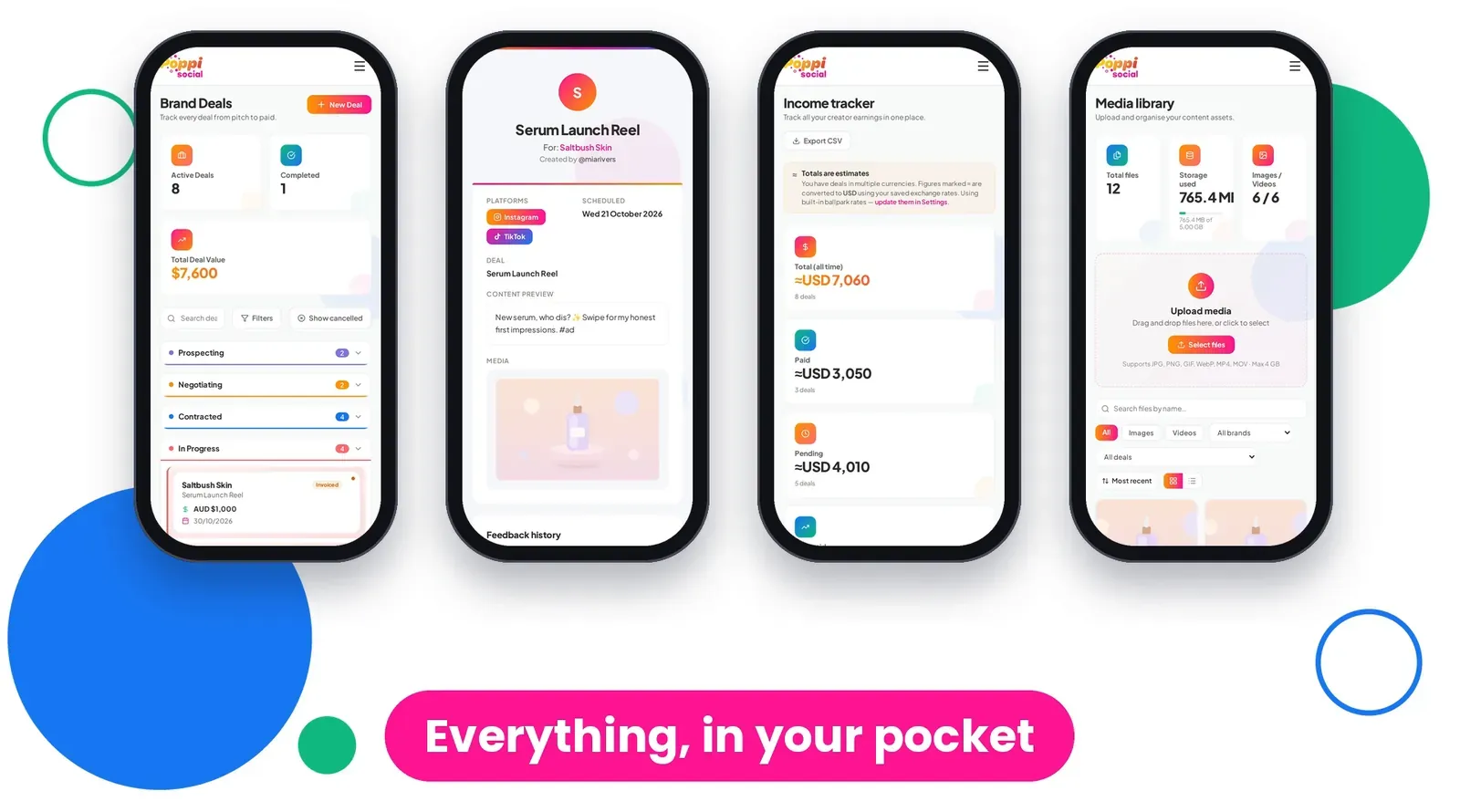
Use Poppi on your phone, and add it to your home screen on iPhone or Android.
Transcript
Poppi works great on your phone, too. Here's your dashboard on mobile. Check your week on the calendar, or switch to the month view. Deals, approvals, income and media are all there, too.
For one-tap access, add Poppi to your home screen. On iPhone, open Poppi in Safari, tap the three dots next to the address bar, then tap Share. Scroll down and tap Add to Home Screen. Leave Open as Web App on, and tap Add.
On Android, open Poppi in Chrome, tap the three-dot menu, then Install and create shortcut. Choose Create shortcut, then tap Add. Now Poppi is right there on your home screen, just like an app.
Steps for adding Poppi to your home screen may vary by device and browser version.
Wrap-up 6:41
A quick recap of the tour, and where to get help.
Transcript
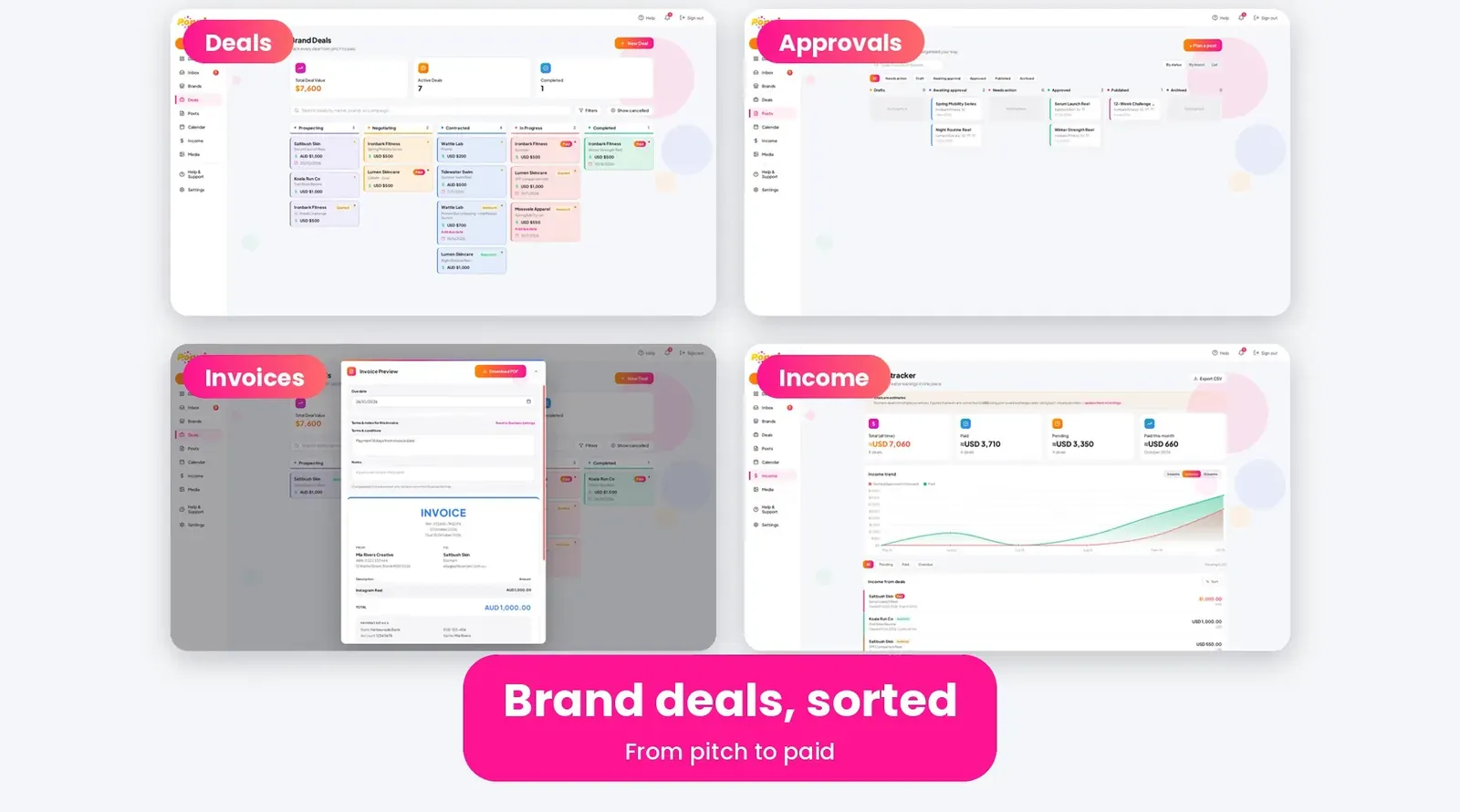
That's the full tour: brands, deals, posts, approvals, invoices and income, all in one place. Need a hand? Visit our support page any time. Now, let's get you paid!
Frequently asked questions
Is Poppi free to try?
Yes. Poppi is free for 60 days with no credit card. After that it is US$15 a month, or US$9.99 a month billed annually as US$119.88.
Does Poppi publish or schedule my posts?
No. Poppi helps you plan the post and get client approval. Once it is approved, you copy it across to the platform or to your scheduling tool.
Does Poppi send invoices or take payments?
No. Poppi creates the quote or invoice as a PDF, and you download it and send it to the brand yourself. Your client pays you directly using the payment details on the invoice.
Does my client need a Poppi account to approve a post?
No. Your client opens the private preview link you send them, with no login, and can leave feedback or approve the post.
Are the brands and figures in the video real?
No. The brands, people and figures in the video, such as Mia Rivers and Saltbush Skin, are fictional examples.
Where can I get more help?
Visit the Poppi support centre for step-by-step guides and answers to common questions.